Follow product changes: What's New and the changelog
DocSolved announces changes in two places. What’s New lists the changes that you can use on your account. The public changelog lists reviewed product updates for everyone.
What you will learn
Section titled “What you will learn”- Read What’s New and know when a dot or New for you marks an update.
- Look back at earlier updates.
- Find older release notes in the changelog.
Time: about 3 minutes.
Before you start
Section titled “Before you start”- For What’s New: you are signed in to DocSolved.
- For the changelog: nothing. It is public.
Use What’s New
Section titled “Use What’s New”-
In the side menu, select What’s New. A dot next to it means there are updates you have not read yet.
-
Read the list. It shows the changes you can use, newest first. Updates you have not read yet are marked New for you. The list depends on your account, so a colleague may see different entries.
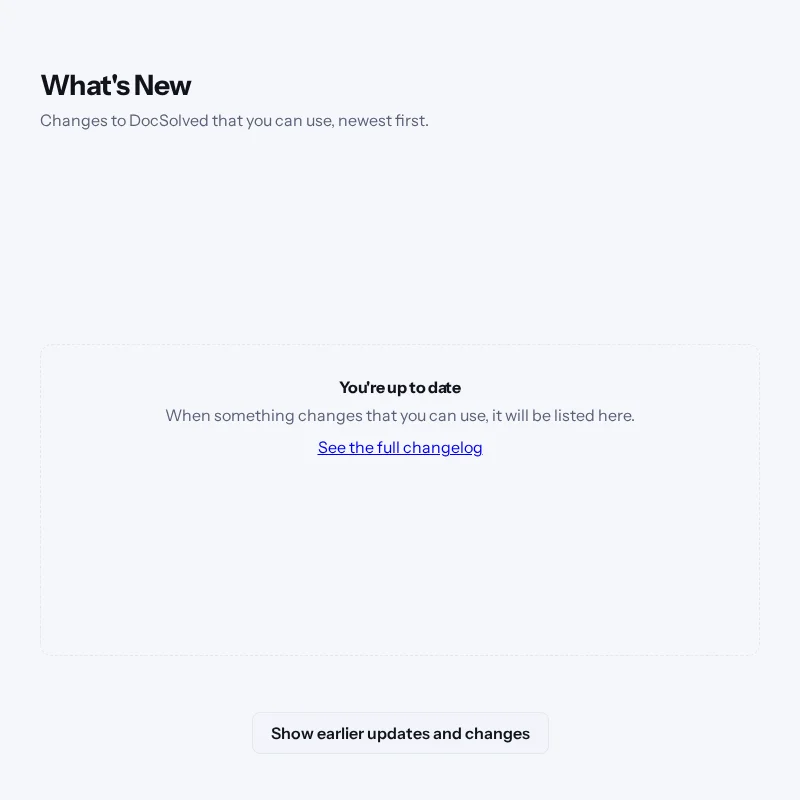
The page when nothing is new: You’re up to date.
Open full size (opens in a new tab) -
Entries that the page displays count as read once they have been shown, and the dot goes away. Mark all as read appears while updates are unread. It clears all of them at once, including those further down.
-
For more, select Show older updates. To look back, select Show earlier updates and changes. It lists everything announced to you, with its status today. Some of it may no longer be available.
-
Select See the full changelog to open the public changelog.
Read the changelog
Section titled “Read the changelog”-
Open the changelog. It starts with Highlights.
-
Below the highlights, reviewed product updates are listed, newest first.
-
Release notes from before 13 October 2026 are kept as written under Complete release history. Select a month to open it. Notes there are marked Archived.
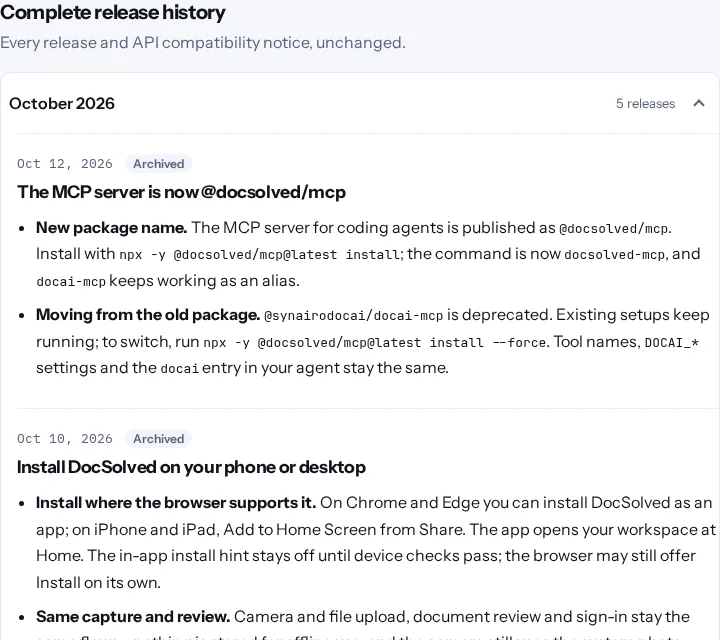
The release history. Archived notes describe what changed then.
Open full size (opens in a new tab)
Expected result
Section titled “Expected result”The dot next to What’s New is gone, and you know where to find both current and earlier changes.
Check your result
Section titled “Check your result”- The side menu shows What’s New without a dot.
- New for you no longer marks any entry, and Mark all as read is not shown.
- You can open an archived release note and see its Archived mark.
Try it yourself
Section titled “Try it yourself”You need: nothing special. The changelog is public, and you can open What’s New once you are signed in. Opening What’s New can mark the entries it shows as read.
- Open the changelog and go to Complete release history.
- Select a month to open it, and find a release marked Archived.
- Open What’s New. If Show earlier updates and changes is there, select it and find the same period.
You should see: archived notes marked Archived in the changelog. In What’s New you see either entries with their status today, or You’re up to date when nothing is announced to your account.
What’s New is empty? That is a normal state, and it depends on your account. Look at the screenshot in step 2: the page says You’re up to date and shows a link to the full changelog. Where do you read the updates that DocSolved announces to everyone?
Show the answer
Select See the full changelog on the page. It opens the public changelog, which lists reviewed product updates for everyone, newest first. Older notes are under Complete release history.
If something looks different
Section titled “If something looks different”- The page says You’re up to date and lists nothing. No change is available for your account at the moment. The changelog still lists the public updates.
- A dot stays next to What’s New. Open the page and select Mark all as read, or open Show older updates to see what is unread.