Export corrected results, one file or a whole batch
Most exports are built from the values saved with a result: a correction or an accepted suggestion replaces the original reading. One format is different. The Annotated PDF shows the pages of the document with the boxes found when it was analyzed, so it does not show your corrections. You can export a single result, or every finished document of a background batch at once.
What you will learn
Section titled “What you will learn”- Export one result in the format you need.
- Know which formats show a corrected value, and which do not.
- Download a finished batch as a ZIP and read its
manifest.json. - Know when Export ZIP is dimmed, and when it is not offered at all.
Time: about 5 minutes.
Before you start
Section titled “Before you start”- You are signed in to DocSolved.
- For a single export: a saved result. Review it first if you want to export the values you checked. To see a correction in the file, correct a value first, or use a result that was corrected automatically (see Accept, dismiss or undo a correction).
- For a batch export: a batch that was processed in the background, that is, sent to the AI provider’s batch service. Files uploaded together and analyzed right away do not have a ZIP export. Export each of those documents on its own.
Export one result
Section titled “Export one result”-
Open the result and select Export.
-
Choose a format. The dialog groups them: data (Structured data (JSON), Fields (CSV), Line items (CSV), Spreadsheet (XLSX)), document (Annotated PDF, Result PDF), e-invoicing (UBL e-invoice) and accounting (Xero, QuickBooks, DATEV, Generic accounting). A format that does not fit the document is dimmed and says why: here, Line items (CSV) reads “This document has no line items”.
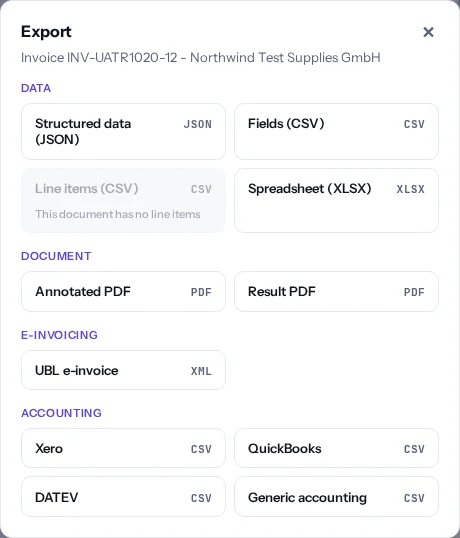
The Export dialog. A dimmed format cannot be used for this document, and says why.
Open full size (opens in a new tab) -
Open the downloaded file and find the field you corrected. It shows your value as DocSolved stores it, which can look different from the screen: EUR 2,380.00 on screen can appear as
2380in the file.
Which formats show a corrected value
Section titled “Which formats show a corrected value”- They show it. Structured data (JSON), Fields (CSV), Line items (CSV) (for a corrected row), Spreadsheet (XLSX), Result PDF, UBL e-invoice and the accounting formats are built from the saved values. The original reading is not exported next to your value.
- It does not show it. The Annotated PDF is the printed page with a box and a field name drawn for each value found when the document was analyzed. It is not redrawn after a correction.
- A summary sentence can still show the old reading. The summary in the JSON, the spreadsheet and the Result PDF is written when the document is analyzed. It is not rewritten when you correct a value.
The accounting formats leave out values they cannot map and tell you what the target still needs, for example account codes. Read that note before you import the file.
Export a whole batch
Section titled “Export a whole batch”-
Open the batch. Next to its status, for example 2/2 done, you find Export ZIP.
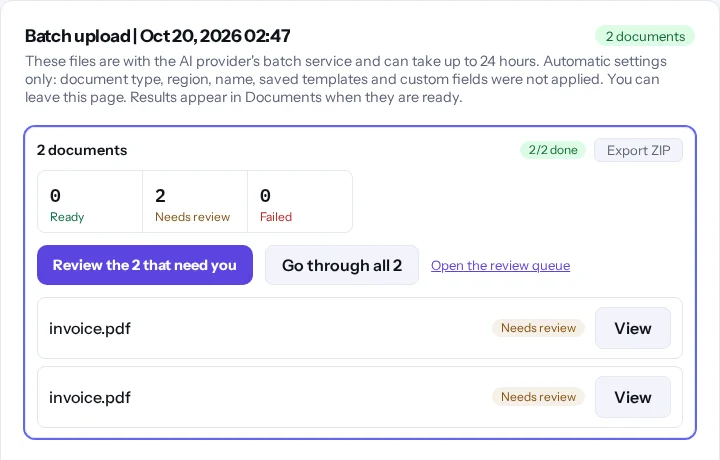
A finished batch: the status reads 2/2 done, and Export ZIP is available. Its resting style is a quiet gray button. It is not dimmed.
Open full size (opens in a new tab)While the batch is still running, Export ZIP is dimmed and cannot be selected. Its tooltip says “Export is available once the batch finishes.” When the batch ends, the button works.
-
Select Export ZIP. Your browser downloads a file named
batch_followed by the start of the batch ID. -
Open the ZIP. It contains one JSON file for every document that finished and was saved, the same as its single JSON export, and a
manifest.jsonthat lists every document.
What the ZIP contains
Section titled “What the ZIP contains”{ "batch_id": "fbf0e849…", "items": [ { "filename": "invoice.pdf", "status": "ok", "history_record_id": "9a680c84-…", "error": null, "export_file": "invoice.pdf.json" }, { "filename": "invoice.pdf", "status": "ok", "history_record_id": "10f8b756-…", "error": null, "export_file": "invoice.pdf (2).json" } ]}export_filenames the JSON file inside the ZIP. Its base name comes from the document filename and contains only lowercase letters, digits, dots and dashes. For duplicates, a suffix such as(2)or(3)is added before.json; these suffixes contain spaces and parentheses.- Two documents with the same name become two files:
invoice.pdf.jsonandinvoice.pdf (2).json. - A document that failed or did not finish has no JSON file, but it is still listed with its
statusanderror. If exporting a finished document fails, itserrorisexport_failedand no file is added.
Expected result
Section titled “Expected result”A corrected value appears in the file you exported, except in the Annotated PDF. Every document of a batch is
accounted for, either as a JSON file or as an entry in manifest.json that says what went wrong.
Check your result
Section titled “Check your result”- The exported file shows the corrected value in the field you changed, not the original reading.
- The Annotated PDF still shows the page as it was printed, with its boxes.
- The ZIP holds
manifest.jsonand one JSON file for each entry that has anexport_file. - A value you corrected shows its corrected value in the JSON file.
- The number of entries in
manifest.jsonequals the number of documents in the batch.
Try it yourself
Section titled “Try it yourself”You need: a saved result with a corrected value, yours or an automatic correction. Exporting does not change the result.
- Select Export, then Fields (CSV), and open the file.
- Find the field you corrected. Compare its value with the value on screen.
- Export Annotated PDF as well, and look at the same field on the page.
You should see: your corrected value in the CSV, and the original page with its boxes in the PDF.
No corrected result? Export Fields (CSV) for any saved result and check that each value matches the data on
screen. For the batch ZIP, read the shortened manifest.json above instead. Which file holds the document with
history_record_id 10f8b756-…?
Show the answer
invoice.pdf (2).json. Both documents are named invoice.pdf, so the second one gets the suffix (2), and
export_file tells you which file belongs to which record.
If something looks different
Section titled “If something looks different”- Export ZIP is dimmed. The batch has not ended yet. The page keeps checking, so wait for it to finish.
- There is no Export ZIP. This was not a background batch, so export each document on its own.
- Result PDF is dimmed. Save the document first. The dialog says “Save the document to export a result PDF”.
- The Annotated PDF shows the old value, or the summary sentence does. Both are expected, as the list under “Which formats show a corrected value” explains.
- The ZIP holds only
manifest.json. No document of the batch finished and was saved. Check the entries for the reason.