A reading mistake or a mistake on the document?
A failed check has one of three causes. DocSolved read a value wrong, or the document itself does not add up, or the check does not fit how the document is built. They look alike on screen, but each one has its own answer.
What you will learn
Section titled “What you will learn”- Tell apart a reading mistake, a mistake printed on the document, and a check that does not fit the document.
- Correct a misread value.
- Keep the document’s own values as printed, with a recorded reason.
Time: about 5 minutes.
Before you start
Section titled “Before you start”- You are signed in to DocSolved.
- You have a saved document with an open issue about a total that does not match its other figures. The issue offers Keep as printed next to Correct a value.
- You know how to open an issue: see Review a document issue by issue.
-
Open the issue and look at the highlighted field on the page. The issue text says which check failed and which figures it compared.
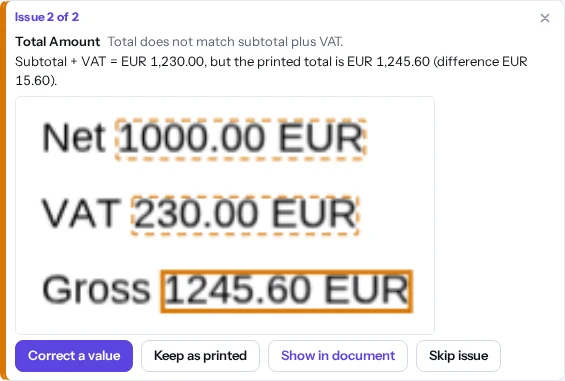
Here the page itself prints 1000.00 EUR net and 230.00 EUR VAT, which makes 1230.00 EUR, but 1245.60 EUR gross. The reading matches the page.
Open full size (opens in a new tab) -
Compare the figures the issue names with what the page prints, then pick the situation that fits:
- The value was read wrong. The page prints one thing and the field says another (for example, the page prints 1.190 for one thousand one hundred ninety and the value was read as 1.19). The page is right and the reading is not.
- The document is inconsistent (as in the picture). The reading matches the page, but the printed figures disagree with each other.
- The check does not fit the document. The reading matches the page and the printed figures are right, but the check does not follow how the document is built. A discount line or a fee line that the check does not include is a typical case.
-
For a reading mistake, select Correct value, type the value as it is printed and select Save. When the check compares several figures, select Correct a value and change the one that was read wrong. If a reading is offered as a button, you can pick it instead. The page stays the reference.
-
For a mistake on the document, or for a check that does not fit it, select Keep as printed. DocSolved asks Keep the values as printed? and says that nothing is recalculated. Under Why?, choose the reason that fits:
- “The document itself does not add up (for example, a supplier’s error).” This is the mistake on the document.
- “The values are correct; this check does not fit the document (for example, discount or fee lines).” This is the check that does not fit.
Add a Note (optional) if you like, then confirm with Keep as printed.
Expected result
Section titled “Expected result”- After a correction, the field shows the value you typed, the same as the page prints, and the check passes.
- After Keep as printed, the issue is closed and the values stay exactly as printed. Nothing is recalculated. The document lists the decision as Kept as printed for a mistake on the document, or as Confirmed as printed when the check does not fit. Details show the reason and your note. You can undo the decision until the review is completed. If one of the compared figures changes later, the decision no longer applies.
Check your result
Section titled “Check your result”- A corrected issue no longer appears in the issue card, and the field shows the value you typed.
- A kept decision stays listed as Kept as printed or Confirmed as printed, with Undo, until the review is completed. In the data of the document, the field says “Kept as printed - the document does not add up.” or “Kept as printed - this check does not fit the document.”
Try it yourself
Section titled “Try it yourself”You need: nothing but this page. Each case describes what an issue says and what the page prints. Decide which of the three situations it is, then open the answers.
- The issue says the printed total is EUR 1.19. The Gross line on the page prints 1.190,00 EUR.
- The picture above: Net 1000.00 EUR, VAT 230.00 EUR and Gross 1245.60 EUR.
- The page prints Subtotal 1,000.00 EUR, Discount -100.00 EUR, VAT 207.00 EUR and Total 1,107.00 EUR. The issue says “Subtotal + VAT = EUR 1,207.00, but the printed total is EUR 1,107.00”.
Show the answers
- A reading mistake: the page prints 1.190,00 and the field says 1.19. Select Correct value, type the value as it is printed and select Save.
- A mistake on the document: net plus VAT is 1230.00, but the page prints 1245.60. The reading matches the page, so do not change it. Select Keep as printed and choose the reason that the document does not add up.
- A check that does not fit: after the discount the base is 900.00, VAT is 207.00 and the total is 1,107.00, so the page is consistent. Only the check, which leaves the discount out, disagrees. Select Keep as printed and choose the reason that this check does not fit the document.
With your own document: when you meet an issue about a total, add up the figures the page prints before you choose. If your sum matches the printed total, the page is consistent and the check may not fit it. If it does not, the document itself is inconsistent. Only when the page and the field differ is it a reading mistake.