Check action dates after a correction
Payment and deadline actions are read from the document. When you correct a value that a deadline was read from, DocSolved does not silently move the date. It marks the action and waits for you.
What you will learn
Section titled “What you will learn”- Recognise an action whose date may be out of date.
- Choose the right date, or set one yourself.
Time: about 3 minutes.
Before you start
Section titled “Before you start”- You are signed in to DocSolved.
- You have a document with a payment or deadline action whose date was read from the document, and you have corrected a value that the date was read from. That can be the printed due date itself, or the document date when the deadline is counted from it (for example “within 14 days of the invoice date”). Without one, you can still do the exercise at the end of this page.
-
Open the document and, under What this document asks of you, select Show. The action is marked Date may be out of date - check it. Until you decide, it is not shown as overdue or due soon.
-
Look for Which date?. It lists the date the document gave and the dates your corrected values give. Select the one that is right for this action.
-
None fits, or no dates are offered? Open More actions (the three dots) and select Set date. Enter the date and select Save date, or select Cancel to leave it.
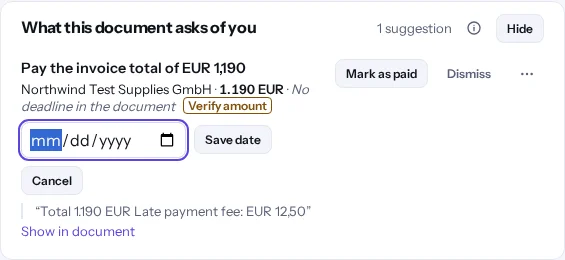
Set date opens a date field with Save date and Cancel. This action has no deadline in the document; the field works the same for an action marked out of date.
Open full size (opens in a new tab)
Expected result
Section titled “Expected result”The action shows the date you chose, marked as a date you set, and it counts as overdue or due soon again based on that date. In More actions, the entry now reads Change date.
Check your result
Section titled “Check your result”- The note Date may be out of date - check it is gone from the action.
- The date next to the action is the one you picked or entered.
- The action appears in the overdue or coming-up lists on Home according to that date.
Try it yourself
Section titled “Try it yourself”You need: any document that shows an action under What this document asks of you, for example a payment action on an invoice. This exercise changes nothing, because you leave with Cancel.
- Under What this document asks of you, select Show.
- Open More actions on an action and select Set date / Change date.
- Look at the date field, then select Cancel.
You should see: a date field with Save date and Cancel. After Cancel, the action is exactly as it was. Nothing is saved until you select Save date.
A case to think through: an invoice says “payable within 14 days of the invoice date”. DocSolved read the invoice date as 1 March, so the payment was due on 15 March. The page prints 10 March, and you correct the invoice date. What does the action show now, and what do you do?
Show the answer
The action is marked Date may be out of date - check it and is not shown as overdue or due soon. Under Which date?, pick the date that is right. Counted from the corrected invoice date it is 24 March. If no offered date fits, use Set date. DocSolved does not move the date for you.
If something looks different
Section titled “If something looks different”- Which date? is not shown. Your corrected values give no other date, so use Set date.
- The action is not marked even though you corrected a value. Only a value that the date was read from can mark it, and restoring the original reading takes the mark away.