Accept, dismiss or undo a correction
A suggested correction waits for you. An automatic correction is applied for you, but only in a few narrow cases, and it can be taken back. This tutorial covers both.
What you will learn
Section titled “What you will learn”- Tell accepting, dismissing and undoing apart.
- Recognise an automatic correction.
- Take a correction back with Undo.
Time: about 5 minutes.
Before you start
Section titled “Before you start”- You are signed in to DocSolved.
- You have a document with a suggested reading, or with a value that was corrected automatically. Without one, you can still do the exercise at the end of this page with its screenshot.
- You know how suggestions are checked: see How suggestions are checked.
Accept, dismiss or undo
Section titled “Accept, dismiss or undo”- Accepting (select the Suggested reading): the value becomes the suggested reading and the issue closes. A line says it was set from the suggestion you accepted, with Undo.
- Choosing another reading or typing a value: the value becomes yours and the issue closes. It is your correction, not the suggestion.
- Dismissing (Dismiss suggestion): the value does not change and the issue stays open. “You dismissed the suggestion. Choose the reading yourself.”
- Undoing (Undo on an accepted or automatic correction): the earlier value comes back and the issue opens again. “You undid the suggested correction. Choose the reading yourself.”
Confirm or dismiss a suggestion
Section titled “Confirm or dismiss a suggestion”-
Open the issue that shows a Suggested reading.
-
Select the Suggested reading to confirm it, or select Dismiss suggestion to discard it.
-
Changed your mind after confirming? Select Undo on the accepted suggestion. The previous value comes back and the issue opens again.
Recognise and undo an automatic correction
Section titled “Recognise and undo an automatic correction”-
Open the document. A value that was corrected automatically shows the message “… was corrected automatically to …, as printed on the page” with Undo.
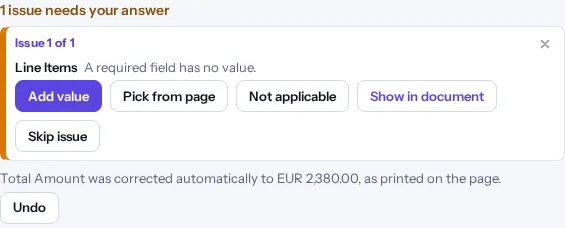
The line under the issue card reports the automatic correction. Undo takes it back.
Open full size (opens in a new tab) -
Check the corrected value against the highlighted area on the page.
-
If the correction is wrong, select Undo. The value DocSolved first read comes back, and the issue is open again with the readings to choose from.
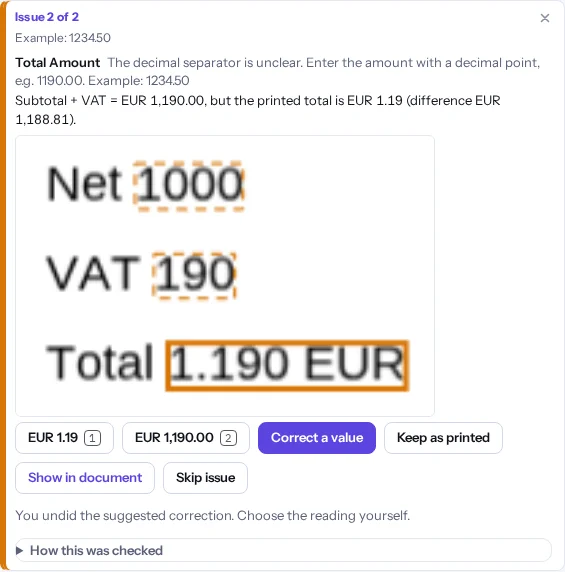
After Undo: the issue is open again and nothing is suggested. Choose the reading yourself.
Open full size (opens in a new tab)
Expected result
Section titled “Expected result”The field shows the value you chose. Exports and shares use that value.
Check your result
Section titled “Check your result”- The data of the document shows the value you chose, and an export contains it too.
- After Undo, the correction line is gone and the issue is back in the card.
Try it yourself
Section titled “Try it yourself”You need: a document with an automatic correction: the line “… was corrected automatically to …, as printed on the page”, with Undo. Undo changes your document. If you change your mind afterwards, choose the corrected reading again yourself.
- Compare the corrected value with the highlighted area on the page.
- Select Undo.
- In the issue that opens again, choose the reading that the page prints.
You should see: the correction line gone after step 2 and the issue back in the card with its readings. After step 3, the field shows the reading you chose, and no “corrected automatically” line.
No automatic correction available? Use the first screenshot above. Which value was corrected, and what does the line say about where the new value comes from? What would Undo do?
Show the answer
Total Amount was corrected automatically to EUR 2,380.00, “as printed on the page”: the new value is printed in the document. Undo would bring back the value DocSolved first read and open the issue again, so that you choose the reading yourself.