Review a document issue by issue
When DocSolved finds something that needs your attention in a result, it does not hand you a list to work through elsewhere. It shows one issue at a time, highlights the field on the page, and lets you answer in place.
What you will learn
Section titled “What you will learn”- Open the first issue and answer it where it is shown.
- Add a value that was not read: type it, or pick it from the page.
- Skip an issue for later and find your way back with the floating prompt.
Time: about 5 minutes.
Before you start
Section titled “Before you start”- You are signed in to DocSolved.
- You have a saved document that needs review. Its header shows a button such as Review 2 issues (your number will differ). Without one, you can still do the exercise at the end of this page with its screenshot.
-
Open the document. A card titled 2 issues need your answer lists the open issues. The one you are on shows Issue 1 of 2, and its field is highlighted on the page.
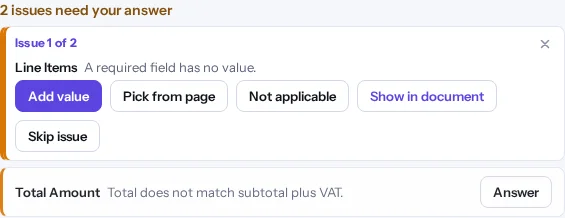
The issue card. The open issue shows its answers; the next one waits behind Answer.
Open full size (opens in a new tab) -
Answer the issue right there. The answers depend on the issue:
- Value is right: the value was read correctly.
- Correct value or Correct a value: type the value as it is printed. When a check compares several figures, Correct a value lists each of them so you can fix the one that was read wrong.
- When an amount or date could be read two ways, each reading is a button: pick the one the page shows.
- Keep as printed: the document really says this, even though a check fails.
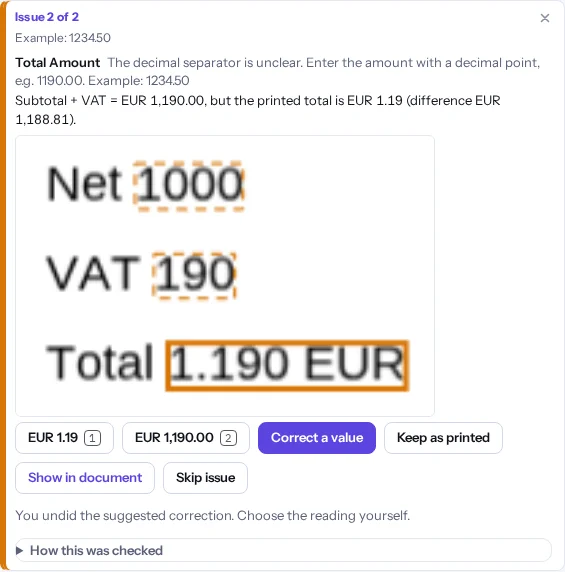
An amount that could be read two ways: pick a reading, correct the value, or keep it as printed.
Open full size (opens in a new tab) -
A value is missing? Select Add value, type the value as it is printed and select Save. To take it from the page instead, select Pick from page, then click the value on the page preview. The field is filled in; check it and select Save. Select Stop picking (or press Esc) to stop without choosing.
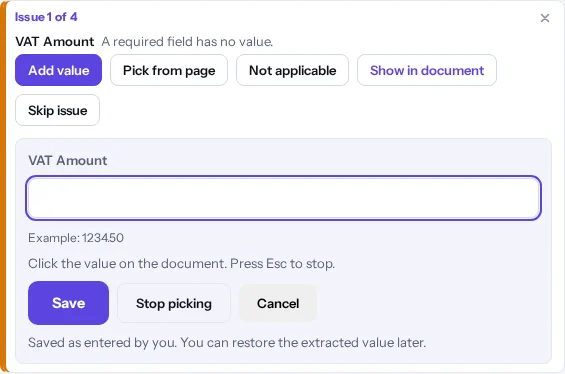
While you pick, the card tells you to click the value on the document. Nothing is saved until you select Save.
Open full size (opens in a new tab) -
The document simply does not have that value? Select Not applicable. DocSolved asks Why does this field not apply? and needs a reason, which is kept in the review history. Confirm with Mark as not applicable.
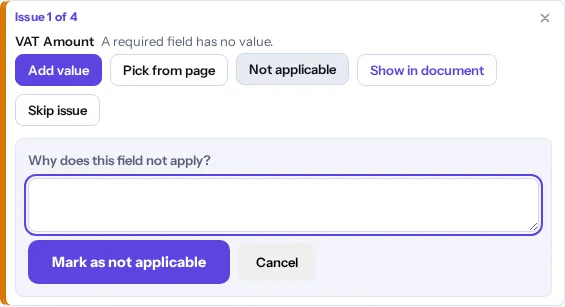
A reason is required. Select Cancel to leave the issue as it was.
Open full size (opens in a new tab) -
Not sure yet? Select Skip issue. The value does not change and is not marked as confirmed. The issue stays open, so you can come back to it.
-
To open another issue in the list, select Answer next to it.
-
On a wide screen, a small prompt keeps your place when you scroll away from the issue card. It shows the issue number and Next issue (or Show issue when only one is left), which scrolls you back to it.
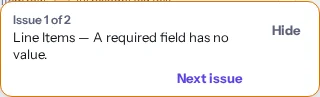
The floating prompt appears once the issue card has scrolled out of view.
Open full size (opens in a new tab)Select Hide to fold it into a small bubble that keeps the count. Select the bubble to open the prompt again.
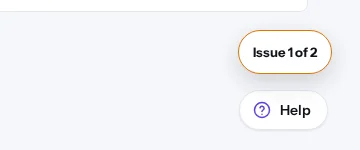
After Hide: the prompt is a bubble.
Open full size (opens in a new tab)On a phone (a screen up to 640 pixels wide) there is no floating prompt. The current issue is pinned with its answers in a sheet above the bottom bar, so you do not have to scroll back. Its Close button (×) closes the sheet.
Expected result
Section titled “Expected result”Each answered issue leaves the count. A skipped issue stays open. When none are left, the card and the prompt are gone and the result no longer shows open issues.
Check your result
Section titled “Check your result”- The number on the Review 2 issues button went down by one for every issue you answered. A skipped issue still counts.
- A value you typed or picked now appears under its field name in the document’s data.
Try it yourself
Section titled “Try it yourself”You need: a saved document with at least two open issues. Answering changes the document, so answer one you are sure about. A value you typed can be changed again in the data of the document, and a suggestion you accepted can be taken back with Undo.
- Select Skip issue on the first issue.
- Answer the second issue.
- Scroll down until the issue card is out of view. On a wide screen, the floating prompt appears. On a phone, the issue is already pinned above the bottom bar, so you can skip the next step.
- Select Next issue.
You should see: the page scrolls back to the issue card and the skipped issue is open again. The number on the review button is one lower than before, and the skipped issue still counts.
No document with open issues? Look at the first screenshot above. How many issues are open, which one are you on, and what would Answer next to the second one do?
Show the answer
Two issues are open and you are on Issue 1 of 2. Answer next to the second issue opens that one in place of the first. The first stays open until you answer or skip it.
If something looks different
Section titled “If something looks different”- The Pick from page button is missing. It is offered only when the document has a readable page. Use Add value and type the value.
- Add value or Pick from page on line items shows “This is a table. Edit its rows in the table.” Use Check table to edit the rows.
- You do not see the floating prompt. On a wide screen it appears only after the issue card has scrolled out of view. On a phone, the pinned sheet takes its place.